PyAvrOCD installation
Linux
Under Linux, users may need to add a few udev rules before they can use PyAvrOCD. Download https://pyavrocd.io/99-edbg-debuggers.rules, edit if you want, and copy to /etc/udev/rules.d/.
Arduino IDE 2, Arduino Maker Workshop, and PlatformIO
If you want to use PyAvrOCD as part of one of the mentioned IDEs, it is sufficient to install a debug-enabled Arduino package in the IDE or set the right platform in your platform.ini configuration file.
Downloading binaries
In order to use PyAvrOCD stand-alone or as part of another IDE, you need to install the PyAvrOCD package explicitly. This can be done, e.g., by downloading the binaries.
Go to the PyAvrOCD GitHub repo, and download the archive containing the binary for your architecture from the set of assets of the latest Releases. This archive includes the folder tools.
How to download the binaries
Click on the Latest button below Releases on the right side of the page.
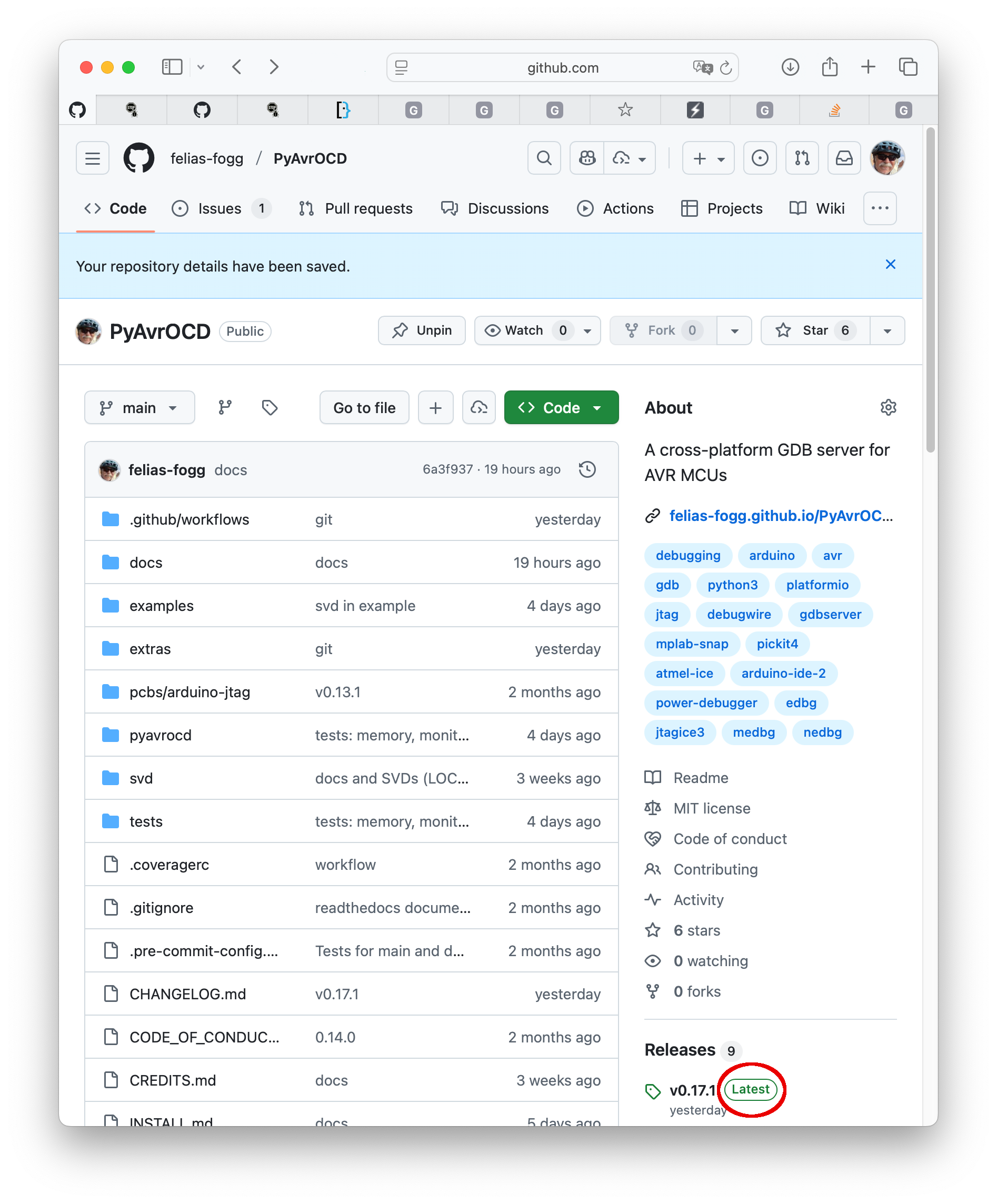
This will open the latest release page with all its assets.
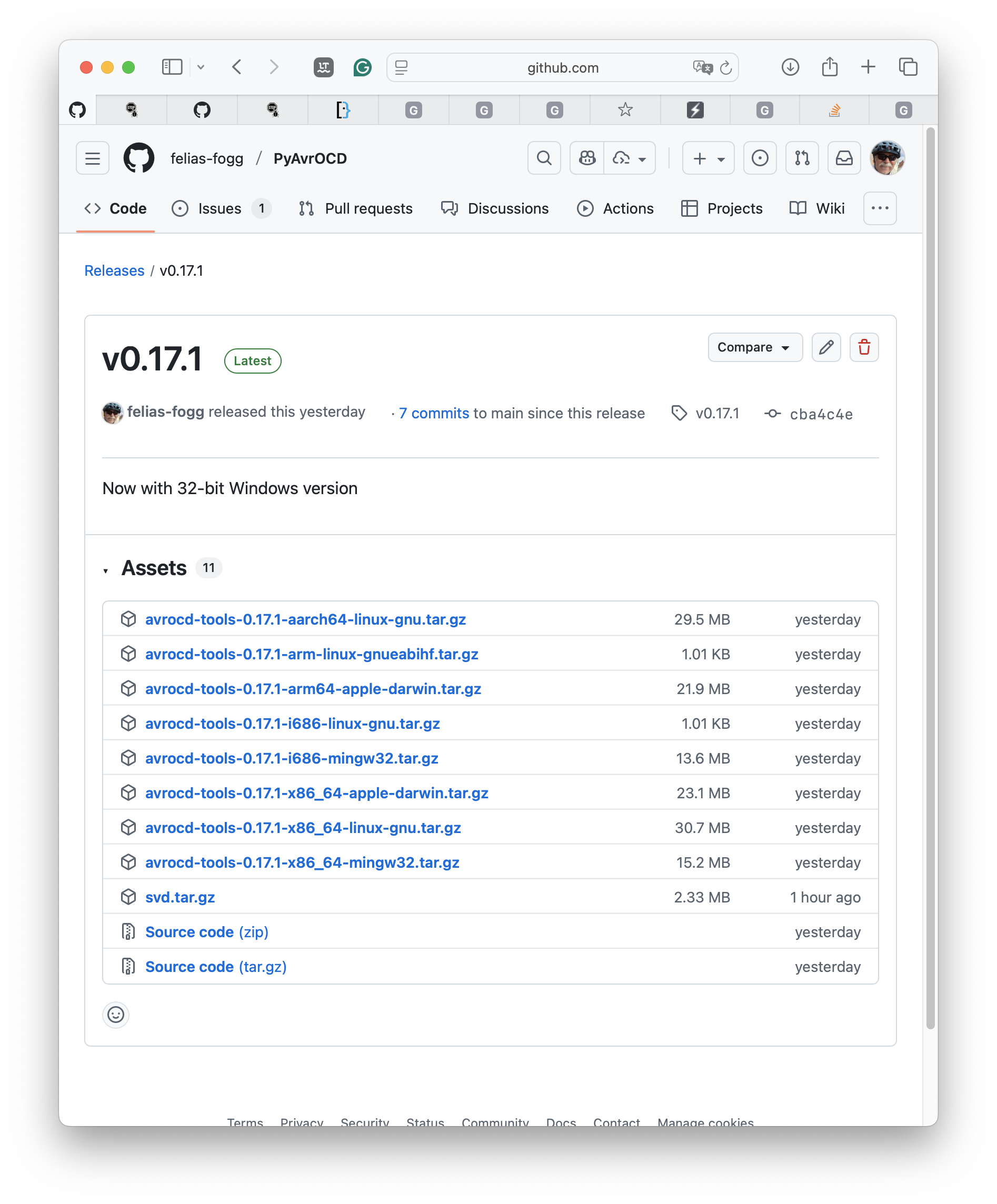
Select the archive matching your architecture and download it.
Then extract the files (for Windows, I assume, you use the Windows PowerShell):
tar xvzf avrocd-tools-X.Y.Z-architecture.tar.gz
Store its content somewhere in a folder and include this folder in your PATH variable.
How to install the binaries
Once you have downloaded the archive and uncompressed it, you need to move the files from the tools folder to its destination (e.g., ~/.local/bin). For this purpose, first move into the tools folder of the uncompressed archive and:
mkdir ~/.local
mkdir ~/.local/bin
rm -rf ~/.local/bin/pyavrocd-util
mv pyavrocd* ~/.local/bin/
mv avr-gdb*  ~/.local/bin/
mv bin/* ~/.local/bin/
mv lib ~/.local/
Now, you only need to add ~/.local/bin/ to your PATH
macOS
On a Mac, files downloaded through a browser or from an email are marked as potentially dangerous, and the system may not allow them to be executed. In this case, use the command xattr -r -d com.apple.quarantine FOLDER in a terminal window to remove the extended attribute com.apple.quarantine from all the binary executables in FOLDER. After that, you can start the executables without a hitch.
PyPI
If you are a Pythonist, you may want to install the Python package instead of the much larger binary. I assume you already installed a recent Python version (>=3.10). Then PyPI, with the help of pip or pipx, will bring PyAvrOCD to your computer.
How to install PyAvrOCD with pip or pipx
It is possible to install PyAvrOCD using pip. However, it is recommended to use pipx instead. Pipx installs packages in a way such that they are entirely isolated from the rest of your Python installation and can be invoked as an ordinary binary executable. So, if you haven't done so already, install pipx following the instructions on the pipx website. Then proceed as follows.
pipx install pyavrocd
pipx ensurepath
Now you should be able to start the GDB server. The binary is stored under ~/.local/bin/.
Note that the folder with SVD files is not part of the PyPI installation. If you want to use SVD files, they have to be downloaded separately from the release page of the GitHub repo. The release asset is called svd.tar.gz.
GitHub
Alternatively, you can download or clone the GitHub repository. Additionally, you need to install a Python package manager, for instance, Poetry, which can be used to install and run the package.
How to use Poetry
After having cloned the repo, install Poetry:
pipx install poetry
In the PyAvrOCD project folder, you can now start executing the script as follows:
poetry install
poetry run pyavrocd ...
Furthermore, you can create a binary standalone package as follows:
poetry run pyinstaller pyavrocd.spec
As a result, under Linux, you find an executable pyavrocd in the directory distcode>. Under macOS and Windows, wou will find the executable in the directory dist/pyavrocd/ together with the folder pyavrocd-util. You can move the executable (and if present pyavrocd-util) to a place in your PATH.