Quickstart guide: Atmel-ICE & ATmega1284
This quickstart guide shows you how to set up a PlatformIO project so that you can debug an ATmega1284 (or any other AVR JTAG Mega) using the debug probe Atmel-ICE (or any other EDBG-based debug probe). We will use the DIP-40 Arduino-compatible development board to demonstrate basic debugging, but again, any board with a JTAG and ISP connector would do.
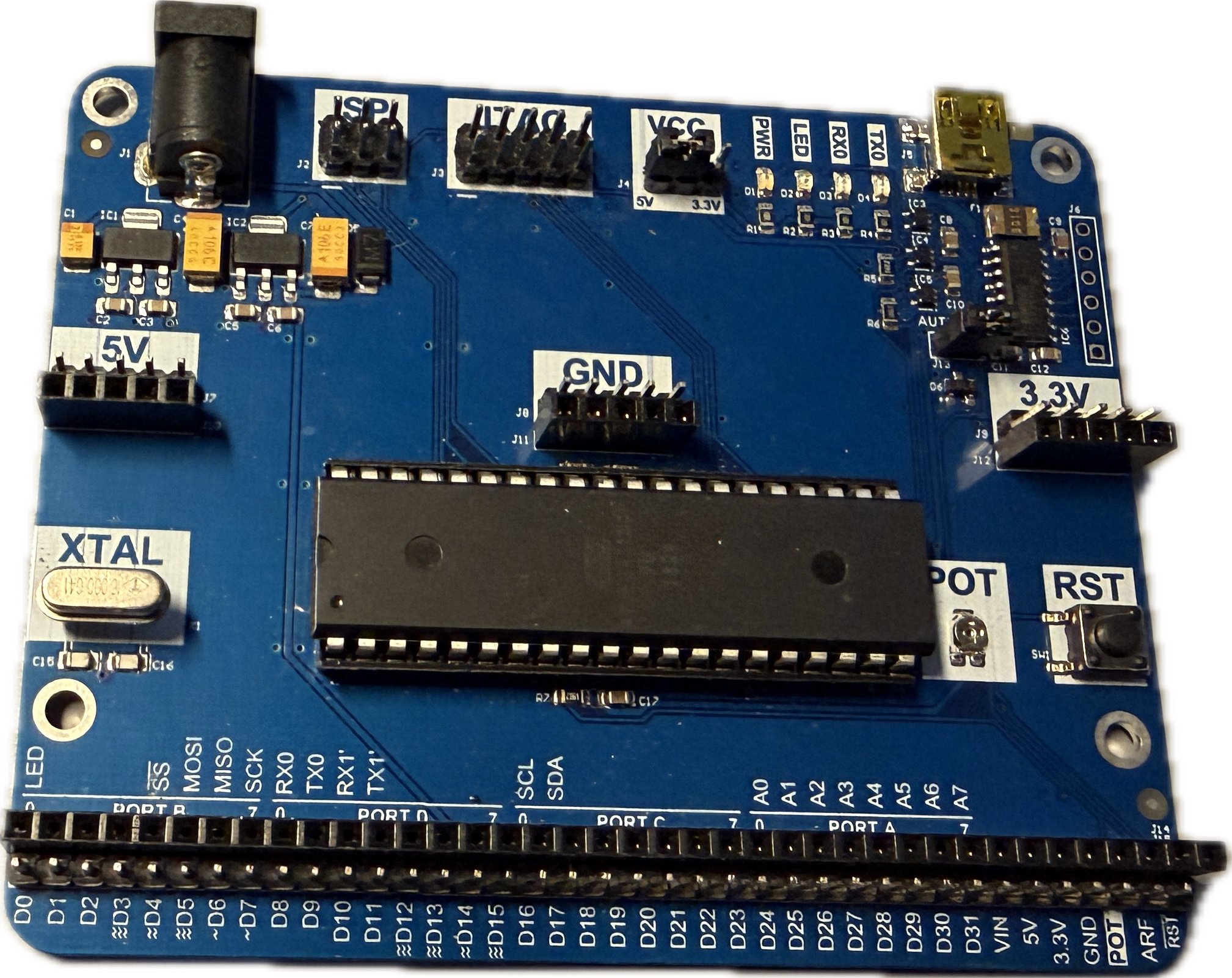
In the following, I will assume that PlatformIO, as an extension of VSCode, has been installed already and that you are somewhat familiar with it.
Step 1: Installing PyAvrOCD
Go to the PyAvrOCD GitHub repo and click on the Latest button below Releases on the right side of the page.
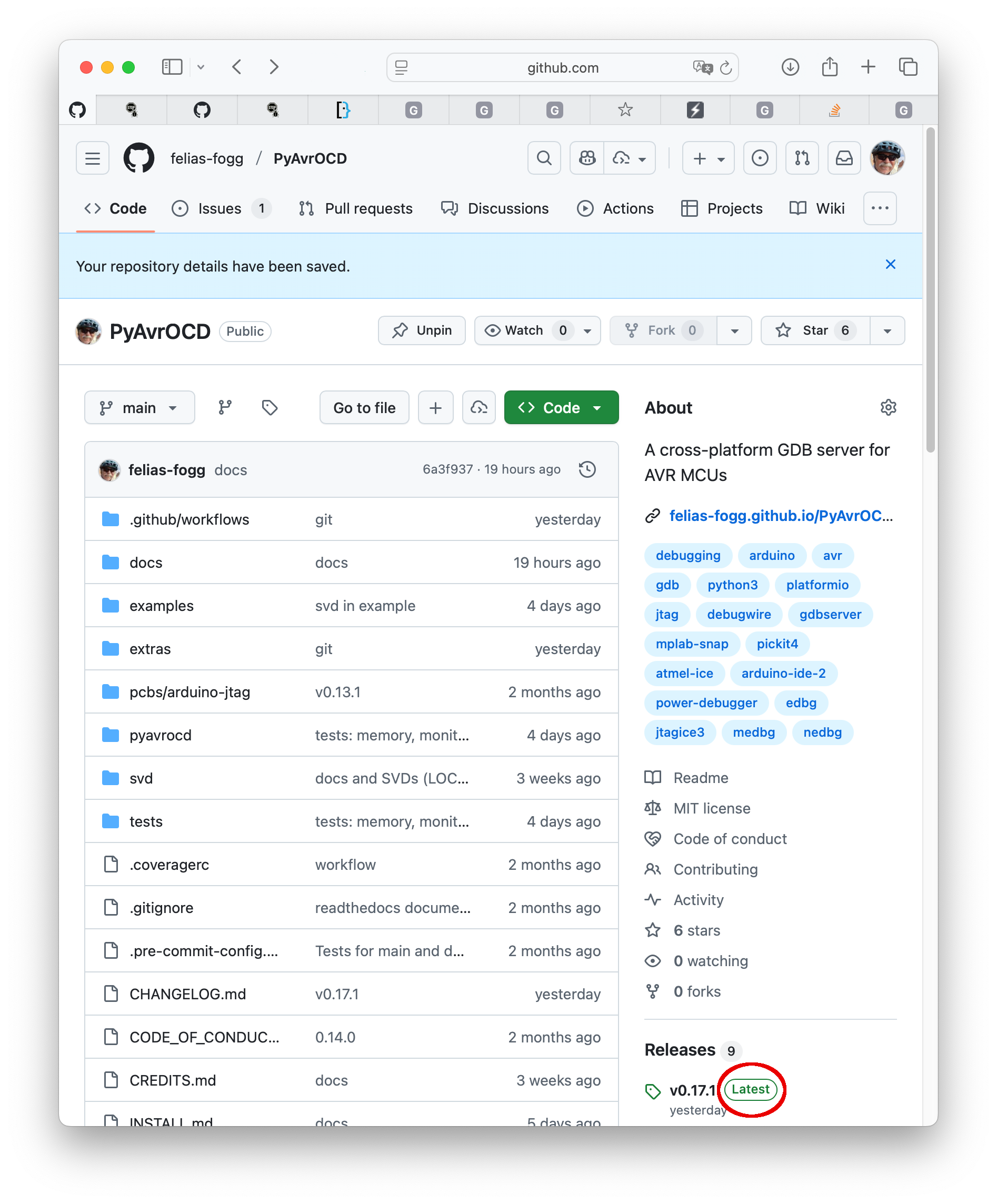
This will open the latest release page with all its assets.
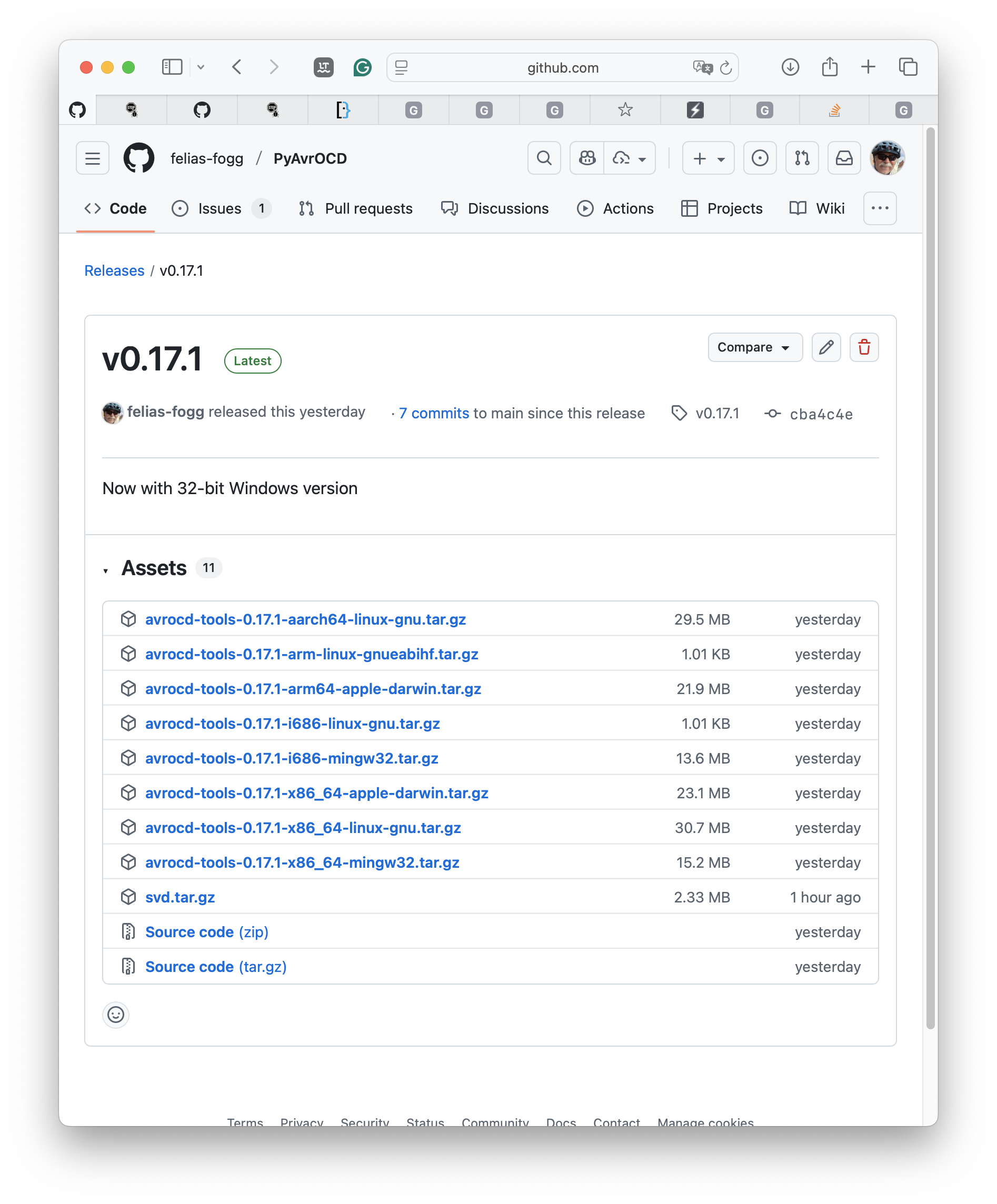
Here you can download the debug server executables for your platform. If there is nothing for you, there is an alternative way to install PyAvrOCD described below. After downloading the archive, extract the files (for Windows, I assume, you use the Windows PowerShell):
> tar xvzf avrocd-tools-X.Y.Z-architecture.tar.gz
Once you have downloaded the archive and uncompressed it, you need to decide where to place the files contained in it. I prefer the folder ~/.local/bin/ (where ~ signifies the user folder). Move the three items that you find in the tools folder of the uncompressed archive to this folder (or any other place you have chosen):
pyavrocd[.exe] - the debug server executable,pyavrocd-util- a folder with auxiliary code and data that should always be stored alongside the executable, andavr-gdb[.exe] - a current version (16.3) of the GDB debugger for AVR chips with a minimal amount of dependencies on dynamic libraries.
> mkdir ~/.local
> mkdir ~/.local/bin
> rm -rf ~/.local/bin/pyavrocd-util
> mv tools/* ~/.local/bin/
Windows
On Windows, use rmdir instead of rm -rf above.
Linux
Under Linux, you need to install udev rules so that the debug probes can communicate with the host. Either execute sudo pyavrocd --install-udev-rules once or install these rules manually (see pyedbglib README).
macOS
On a Mac, files downloaded through a browser or from an email are marked as potentially dangerous, and the system may not allow them to be executed. In this case, use the command xattr -d com.apple.quarantine FILE in order to remove the extended attribute com.apple.quarantine from the binary executable FILE.
Step 1a: An alternative way of installing PyAvrOCD
When you are not happy with the choices provided to you above, when the PyAvrOCD binaries will not start because of incompatibilities, or when you have a compatible Python installation that you do not want to duplicate, it is also possible to install PyAvrOCD from PyPI, the Python Package Index. The preferred way of doing that is using pipx, which will install an executable in the folder ~/.local/bin/ and a virtual Python environment with all the required modules in ~/.local/pipx/. Although this is, in theory, platform agnostic, you may encounter problems when USB and HIDAPI libraries have to be built from source. Note that Linux users need to install udev rules (see above).
Assuming that you have been successful in installing PyAvrOCD using pipx, we also want to download SVD files that we will need during our IDE debugging sessions. Create the folder pyavrocd-util in the folder ~/.local/bin , download the SVD archive into it, and extract the folder:
> cd ~/.local/bin
> mkdir pyavrocd-util
> cd pyavrocd-util
> wget https://github.com/felias-fogg/PyAvrOCD/releases/latest/download/svd.tar.gz -O svd.tar.gz
> tar xvzf svd.tar.gz
Step 2: Replace the outdated avr-gdb client
The avr-gdb client in the AVR toolchain, as delivered by PlatformIO, is seriously outdated (version 7.8 from 2014). Even worse, under recent versions of macOS and Ubuntu, it will not start because of incompatibilities. For this reason, it makes sense to employ a more recent version of avr-gdb. Either use the one obtainable from your OS or make use of the binary downloaded in Step 1. The folder you need to copy the client to is ~/.platformio/packages/toolchain-atmelavr/bin:
cp ~/.local/bin/avr-gdb .platformio/packages/toolchain-atmelavr/bin/
Step 3: Set up the example project
Since PyAvrOCD is a custom debug solution, a number of things have to be specified in the PlatformIO configuration file platformio.ini, too long to present here. You can clone a project containing this file, together with a small program, from
https://github.com/felias-fogg/pio-atmega1284p-example
After opening a new window, click on Clone Git Repository... and type the above line into the input field. Perhaps VS Code asks you to log in to GitHub first.
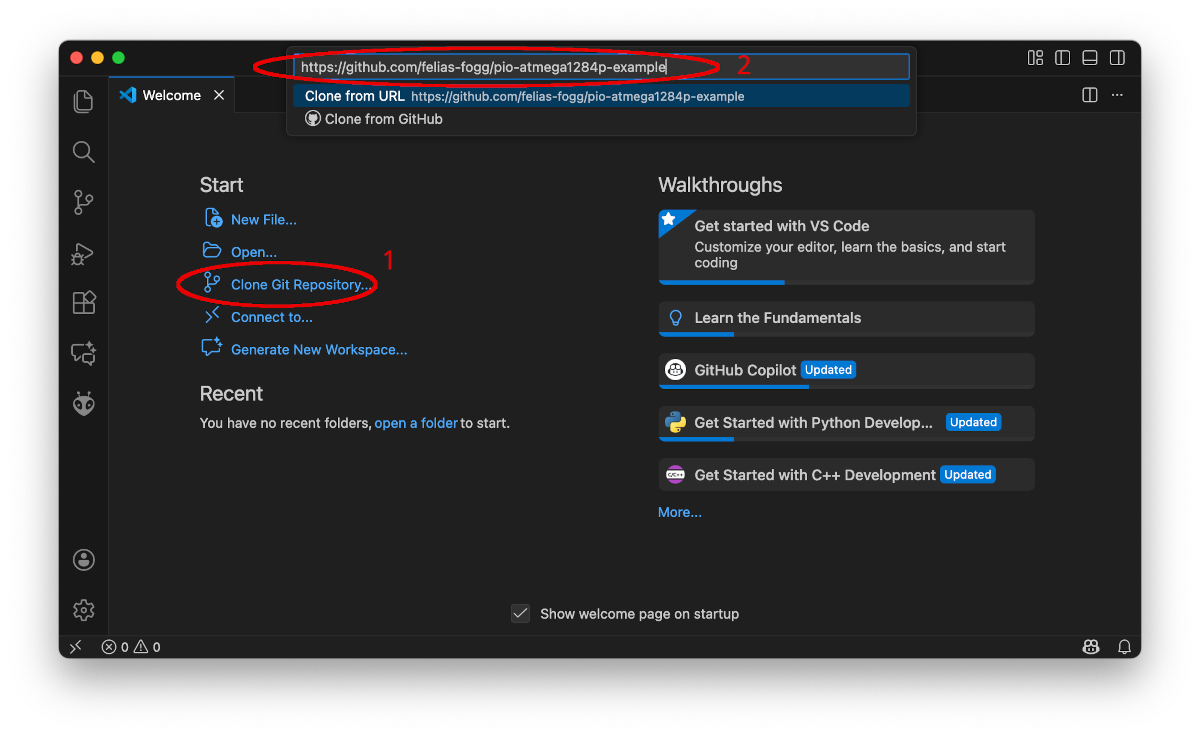
The repo will be cloned, and you have to provide a destination for it.
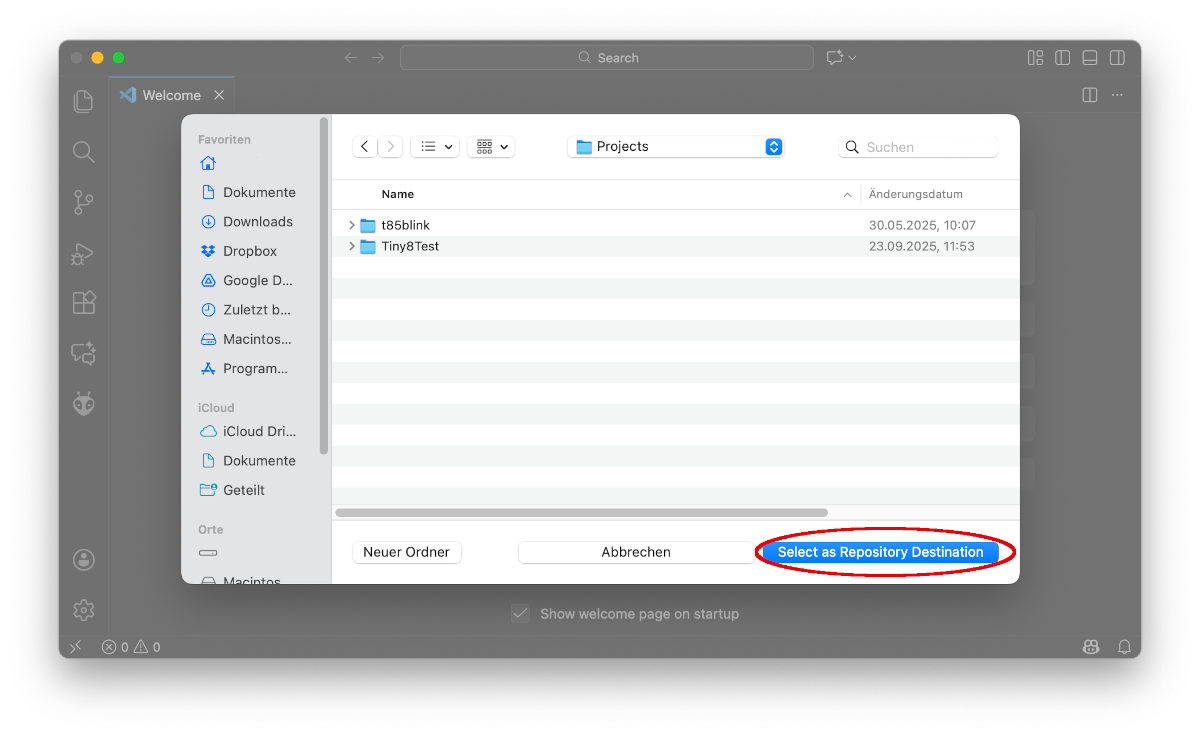
Step 4: Prepare the board for debugging
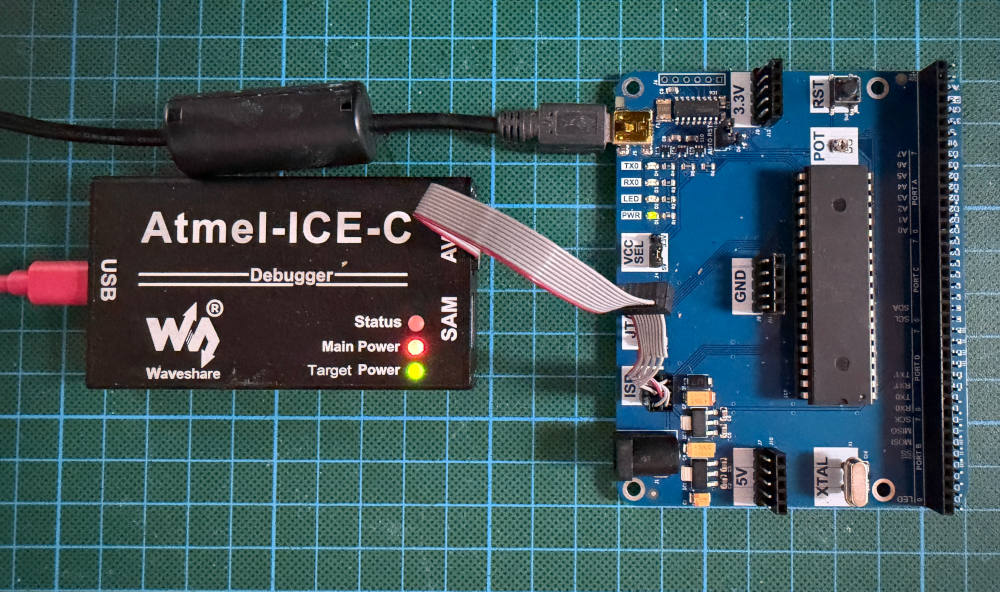
Before debugging can take place, you need to make sure that the JTAG pins are enabled. On an ATmega1284P, these are the pins PC2—PC5. Fresh from the factory, the JTAG pins are enabled. However, on Arduino boards, they are by default disabled. Since the state is probably unknown, we will set them anyway. In order to activate them, we need to connect the Atmel-ICE to the board using the ISP connection, as shown in the following photo. The key or marker of the ISP plug should be oriented towards the MCU.
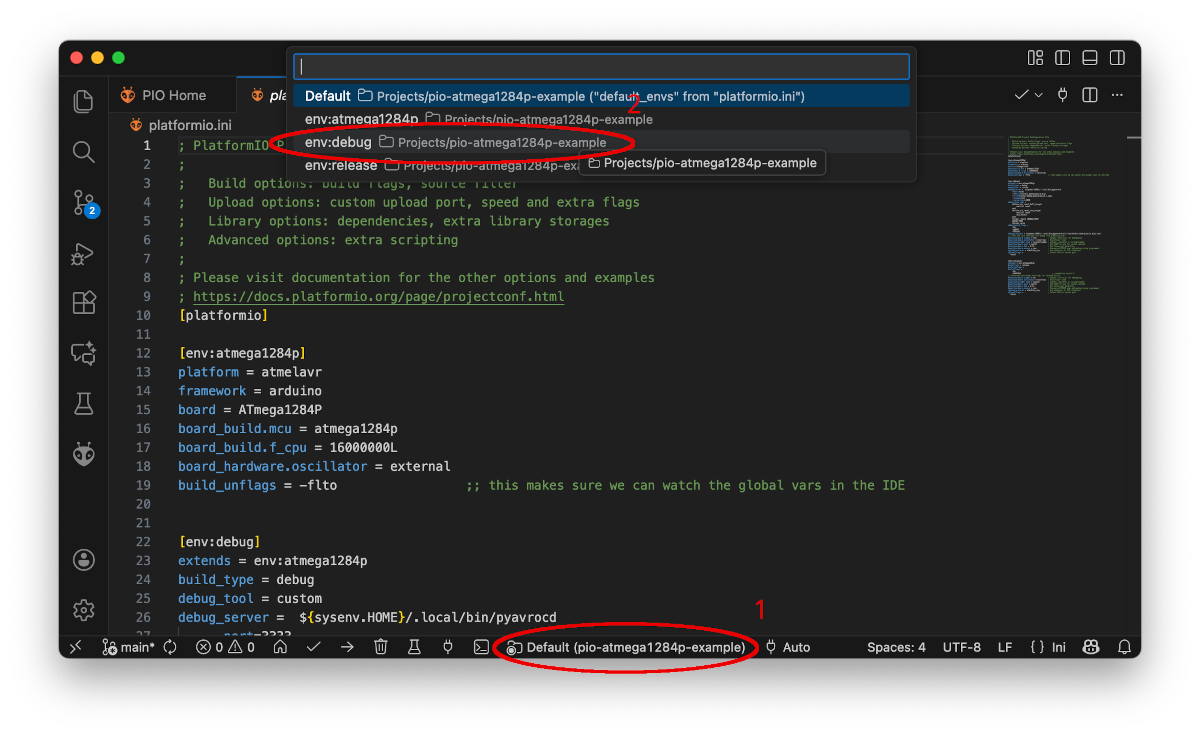
In order to set the correct fuses, we now select the debug environment by first clicking on the environment symbol in the bottom line and then choosing the right environment at the top.
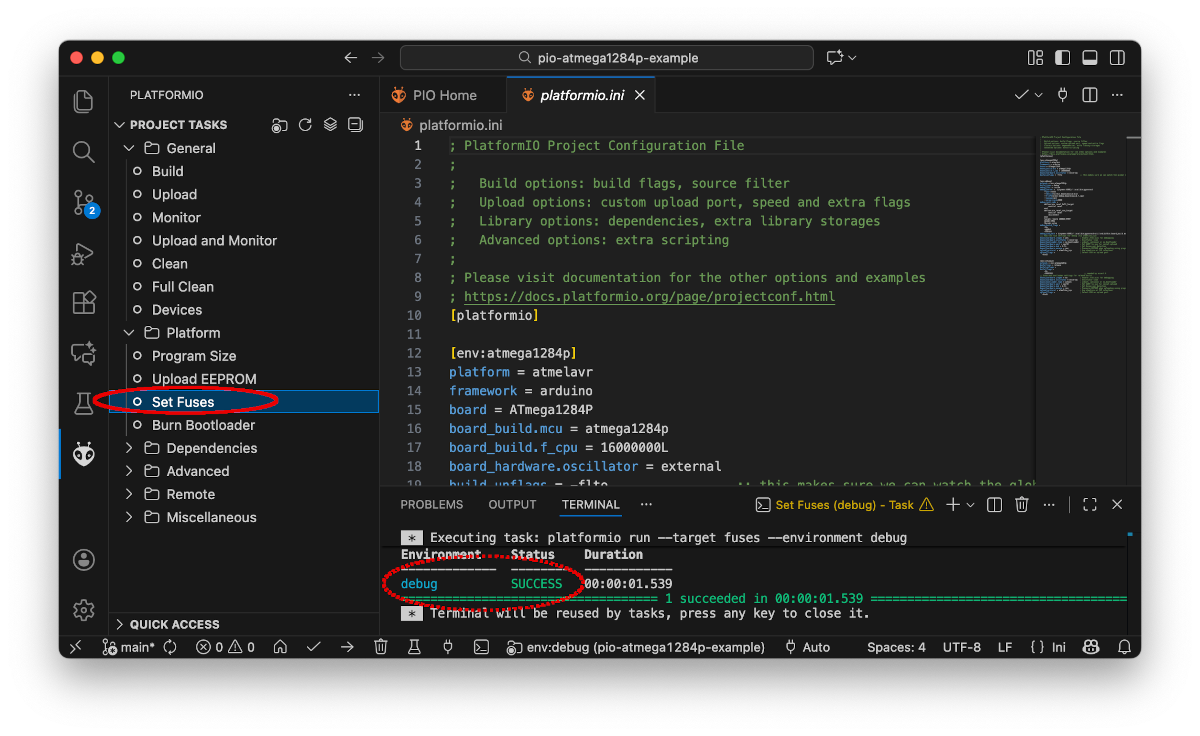
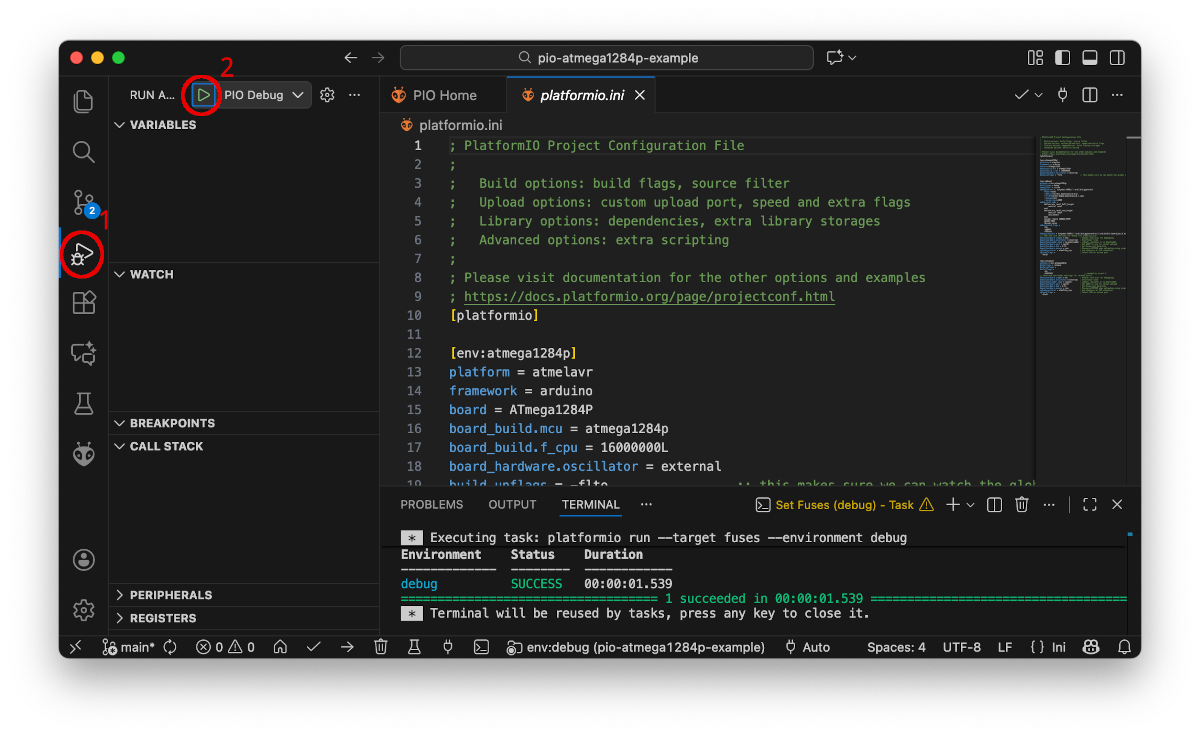
After that, we request to set the fuses as specified in the debug section in the configuration file by clicking on Set Fuses. The result of this action is displayed in the Terminal window and should be as shown in the picture below.
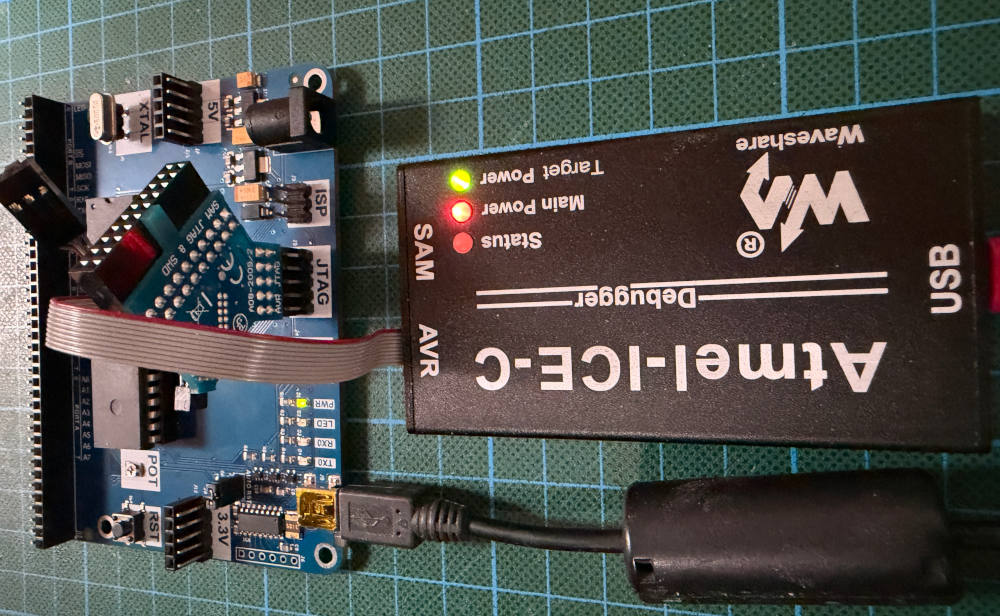
Before we can start debugging, we need to change the connection between the debug probe and the target board from ISP to JTAG, as shown in the following picture. As with the ISP plug, the keying or marker should be oriented towards the MCU.
Step 5: Debug the program
If you have not activated the debug environment, now is the time to do it (as shown in the previous step). And then we are ready to go into business seriously. First, click the debug symbol (bug in front of the triangle) in the left side bar, which will bring up the debug panes on the left side. Then, click the green triangle at the top.
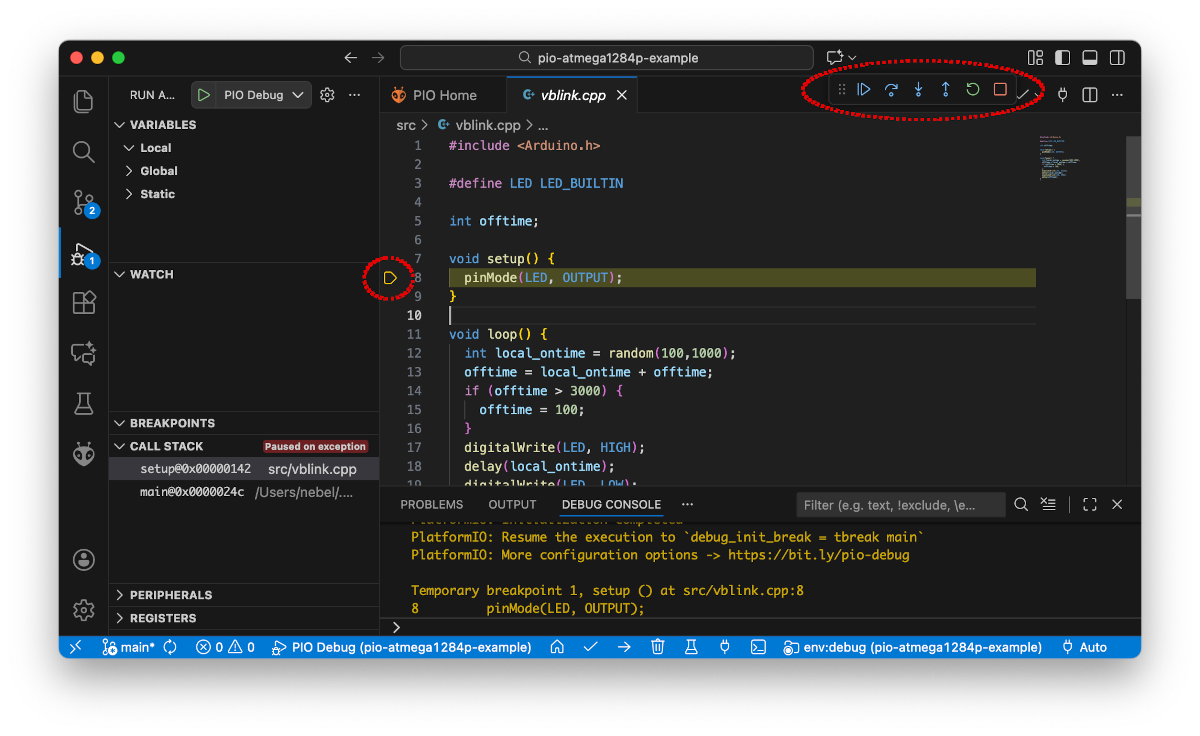
This will start the compilation process, and after that, the debug server. The code will be uploaded, and execution will begin. As requested by the configuration in platformio.ini, a first temporary stop is made in the setup function. The yellow triangle and the highlighted line signify this. The most important control panel is now the one shown on the right side at the top. It enables you (from left to right) to
- continuing/suspending execution,
- stepping-over, i.e., making a step to the beginning of the next source line in the same function,
- stepping-in, that is, making a step to the next source line (entering perhaps a new function),
- stepping-out, that is, executing the current function until it returns to the calling function,
- resetting the MCU, and
- terminating the debugging session.
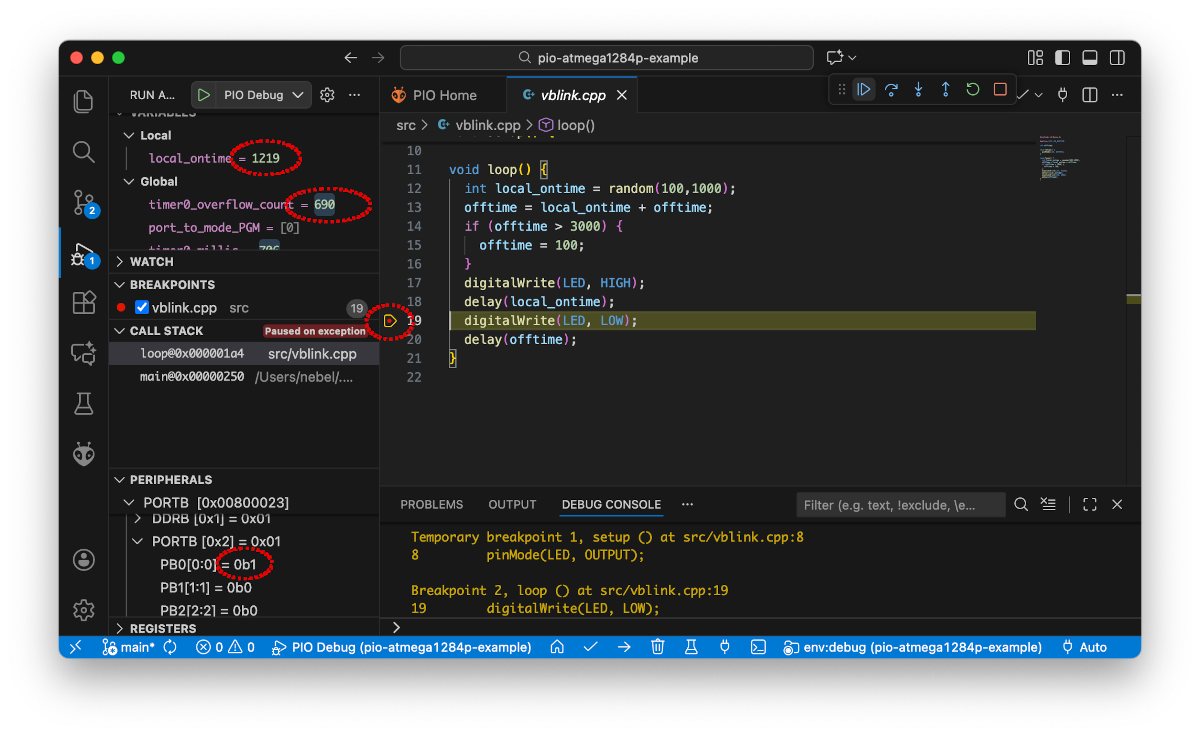
Before we click the Continue button, let us make some amendments. Place a breakpoint in line 19 by clicking to the left of the line number (1). Then let us require to make local and global variables visible for inspection by clicking on the markers left at the top (2 & 3). In addition, let us have a look at the peripheral register PORTB (4). Finally, click on the continue button (5) to continue execution.
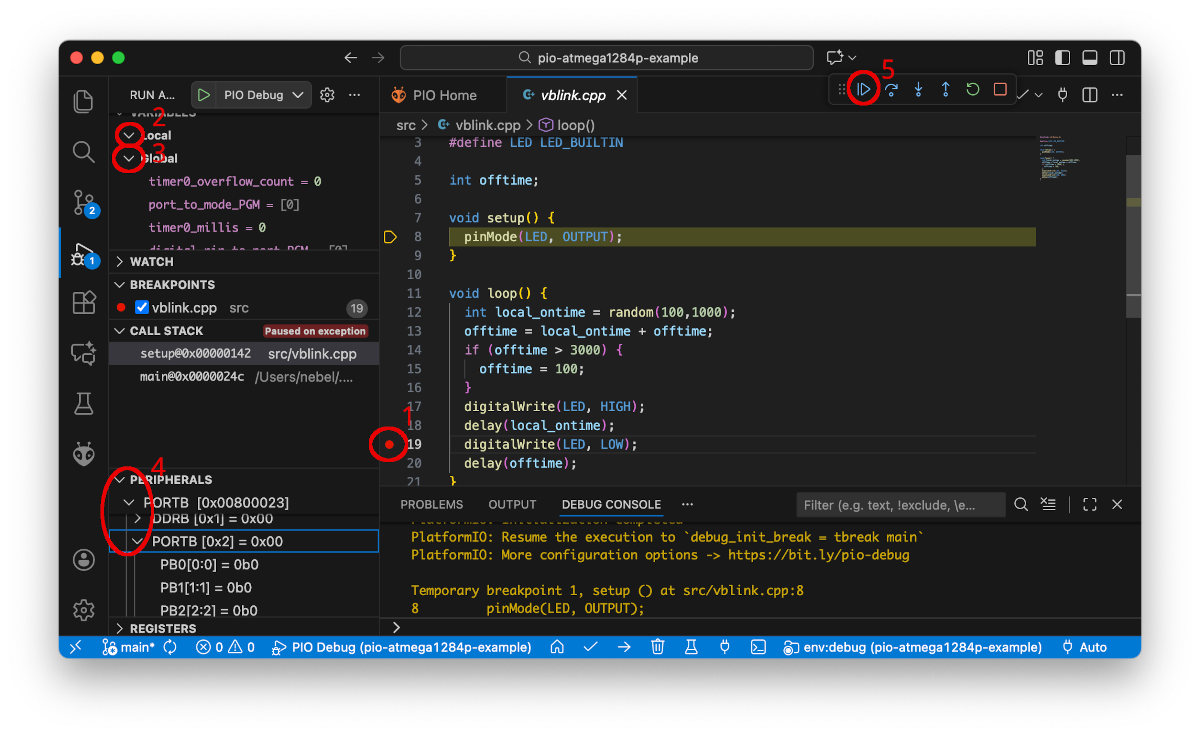
After a short while, execution will stop in line 19. As one can see on the left, a local variable local_ontime came to life and has a value now. Similarly, all the global variables have values now. And one can see that bit 0 of PORTB, which is the port bit controlling the LED, is now also 1. Unfortunately, not all register values that should be displayed are actually displayed. This seems to be an error of the IDE.
I believe that from here on, you will be able to use the debugger productively.
Step 6: Start over or terminate the debugging session
If you have found the bug you were hunting, you can now leave the editor (red square), edit the program, and start again at step 5. Note that you always have to restart the debugger before any changes you made to the program are effective. In fact, changing the source text while you are debugging is not a good idea, because the correspondence between the compiled code and the source code will be lost.
Instead of starting a new edit/compile/debug cycle, you may want to call it a day and end debugging. In this case, you may wish to disable the JTAG pins, perhaps. For this purpose, you first need to switch back to the ISP connection. Then switch to the release environment and click Set Fuses again. Possibly, you even want to restore the bootloader, which was deleted when starting the debugger. In this case, you need to click Burn Bootloader.
Potential Problems
There is always the chance that something goes south, either debugging does not start at all, or something funny happens while debugging. If so, it is a good idea to have a look at the output in the DEBUG CONSOLE. Messages with the prefix [CRITICAL] often tell what went wrong. It may also be a good idea to consult the Troubleshooting and the Limitations sections of the PyAvrOCD manual.
One common problem is forgetting to change from ISP to JTAG or back. In this case, the debug probe complains that there is no device.